Azure Web App
The Azure Web App hosts the Make Provisioning website, running on the App Service Plan mentioned in the previous paragraph. The installation of Make Provisioning deploys the files required to run the website and several web jobs. The Web App is configured with the property AlwaysOn set to enabled, which is required for the web jobs to run on a schedule.
By default, the name of the Web App follows the naming convention:
| Naming Convention | Description |
|---|---|
| Format | <DEPT[2|4]>-WEB-<SERVICE[3|6]>-<ENVIRONMENT[2|4]><REGION[2|3]> |
| Example | RC-WEB-MAKE-DEV-WE |
| RC-WEB-MAKE-PRD-WE | |
| RC-WEB-MAKE-DEMO-WE |
The Azure Web App also has several Tags applied, which can be used for filtering when managing resources in the Azure Portal.
Web Jobs
Make consists of three types of web jobs:
- Worker: Processes standard requests from the queue.
- AdminWorker: Keeps the History list in sync with the SharePoint Online site collection list. Any changes on the SharePoint Online side will be visible in Make.
It is possible to have multiple web jobs of each type, except for the Admin web job. You can organise the web jobs efficiently with schedules. For example, if you have five Worker web jobs, you can run each web job every five minutes, starting one minute later than its predecessor.
Each web job has its own folder on the Web App’s file system. In this folder, a file named settings.job exists, which defines the schedule. The next paragraph explains how to access the Web App’s file system.
Files
The Make Azure Web App has files deployed to run the website. These files are accessible using the Azure Portal:
- Navigate to the Make Resource Group, then to the Make Azure Web App.
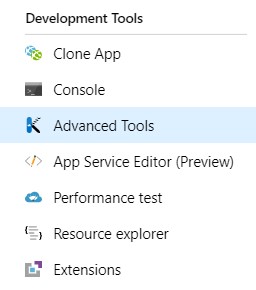
- From the Web App blade, browse to the section Development Tools and select Advanced Tools.
- Click on the link Go. This will open a new browser tab and display the Kudu environment. Kudu is the engine behind deployments and provides functionality to browse the file system.
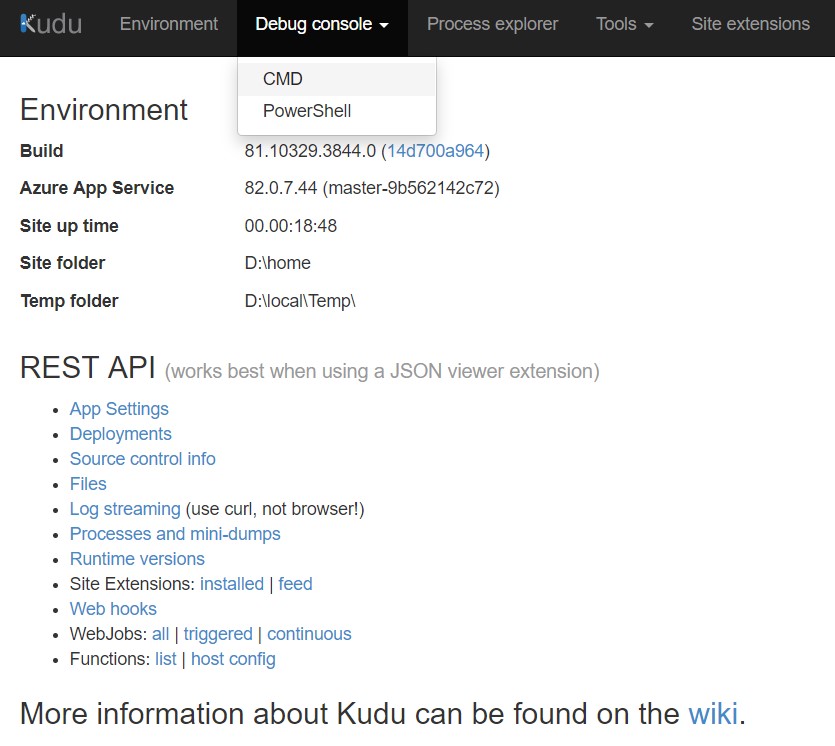
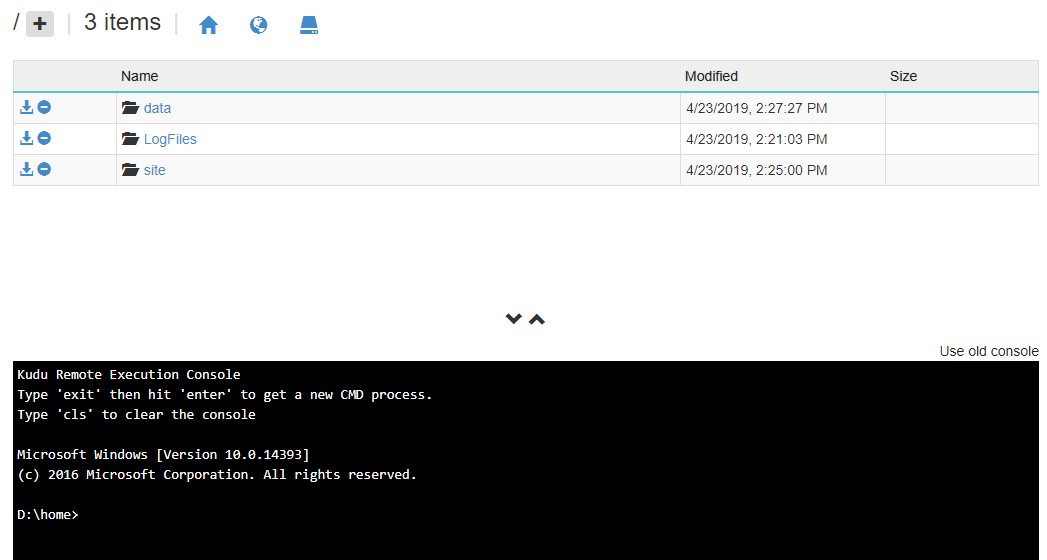
- From the top menu, select Debug, then choose CMD.
This will display the file system.
-
The main website files are stored in:
\site\wwwroot -
The web job files are stored in:
\site\wwwroot\App_Data\jobs\Triggered
Each web job has its own folder.