Automated Installation
The automated installation process sets up Make Provisioning by creating and configuring most of the required resources in Azure and Microsoft 365. It also records all actions, making future management and troubleshooting easier.
If you’re comfortable using PowerShell and working with Azure or Microsoft 365, this is the recommended option. It saves time by automating nearly everything and provides detailed logs for smooth administration.
Requirements
To complete the installation, ensure the following requirements are met:
- A Global Administrator account must be used.
- An Azure subscription is available. Either:
- The Global Administrator account can create Resource Groups in this subscription, or
- A Resource Group exists where the Global Administrator account has the Owner role.
- Important: Before running the script, ensure that Privileged Identity Management (PIM) access is activated for the Global Administrator account. This guarantees the necessary permissions.
Required PowerShell Modules
-
PowerShell v7.2 or newer Download
Designed for cloud, on-premises, and hybrid environments, PowerShell 7 includes numerous enhancements and new features. -
Note: The installation script automatically ensures that all other required supporting modules are installed during execution.
Configure Installation Parameters
This section covers updating the basic configuration settings in the installation wrapper script, including tenant details, environment, Azure region, and optional SharePoint settings. These parameters must be reviewed and updated before running the installation to ensure the solution is deployed correctly.
-
Navigate to the
Make-Provisioning-*.*.*.*folder. -
Open and update
Install-Make-Wrapper.ps1in Notepad and locate “# Basic Configuration” section.
Figure 1: Add tenant details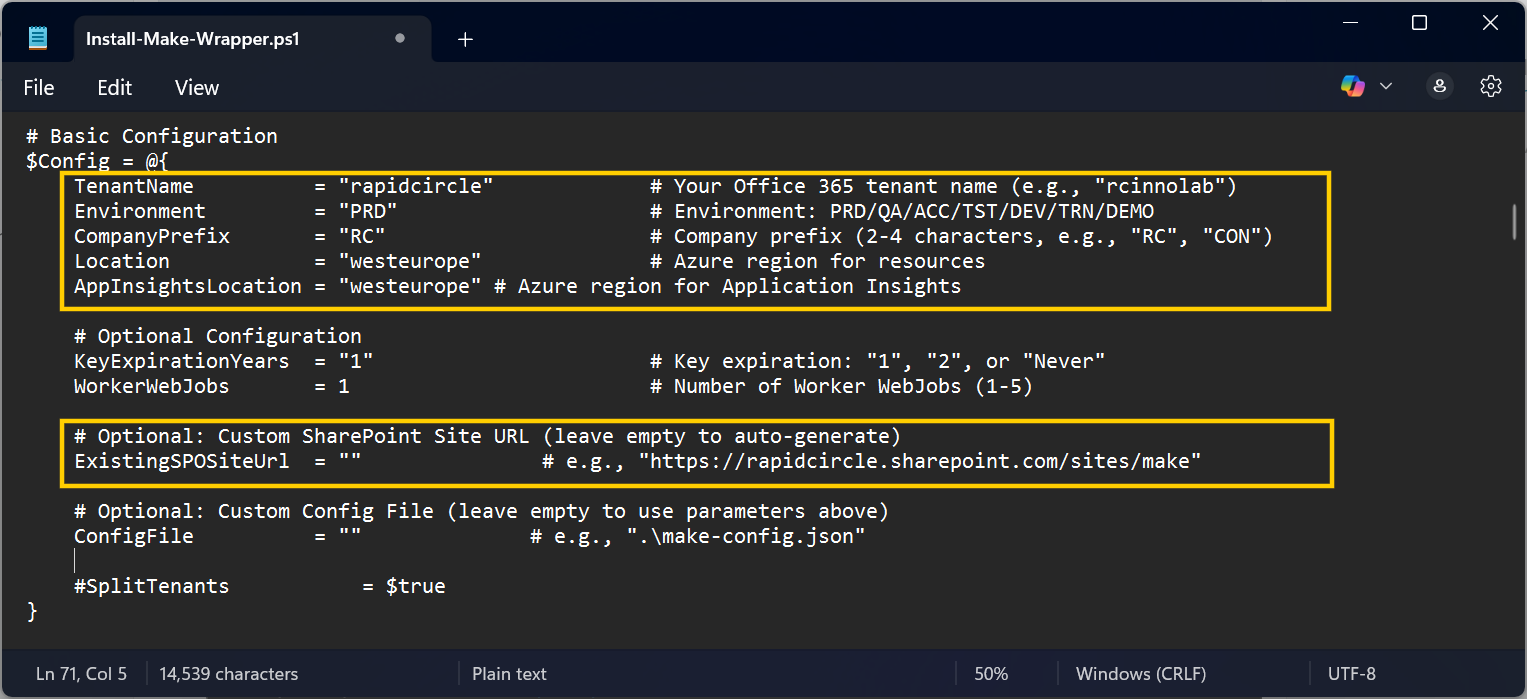
| Parameter | Description |
|---|---|
| Environment | Target environment: PRD (Production), ACC (Acceptance), TST (Test), DEV (Development) |
| Location | Azure Web App deployment location (e.g., westeurope, northeurope). Default: westeurope |
| AppInsightsLocation | Azure Application Insights location. Default: westeurope |
| TenantName | Your tenant name (e.g., Contoso) |
| CompanyPrefix | Company or department prefix (2–4 characters, e.g., POR, BDO) |
| ExistingSPOSiteUrl | Optional. URL to existing SharePoint Online site |
Install Make Provisioning
This section guides you through running the installation script using PowerShell 7 to deploy and provision all required Azure resources for Make Provisioning.
NOTE |
A log file is generated in the same folder during installation for administrative and troubleshooting purposes. |
-
Open PowerShell 7 and change the directory to the release folder:
cd "<Path>/Make-Provisioning-*.*.*.*"
Figure 1: PowerShell 7 Directory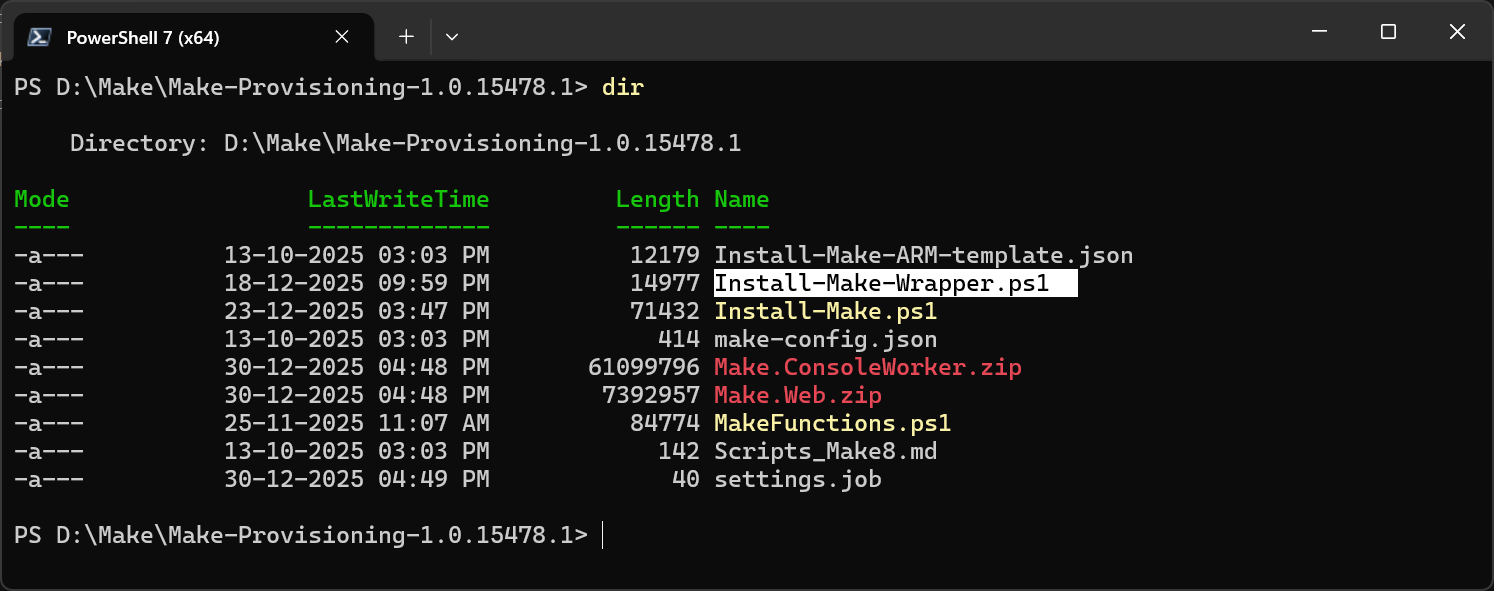
-
Execute the script Install-Make-Wrapper.ps1 and Verify that you have provided the correct parameter values and enter
Y.
.\Install-Make-Wrapper.ps1
The installation creates and provisions all necessary Azure resources.
Figure 2: Confirm parameters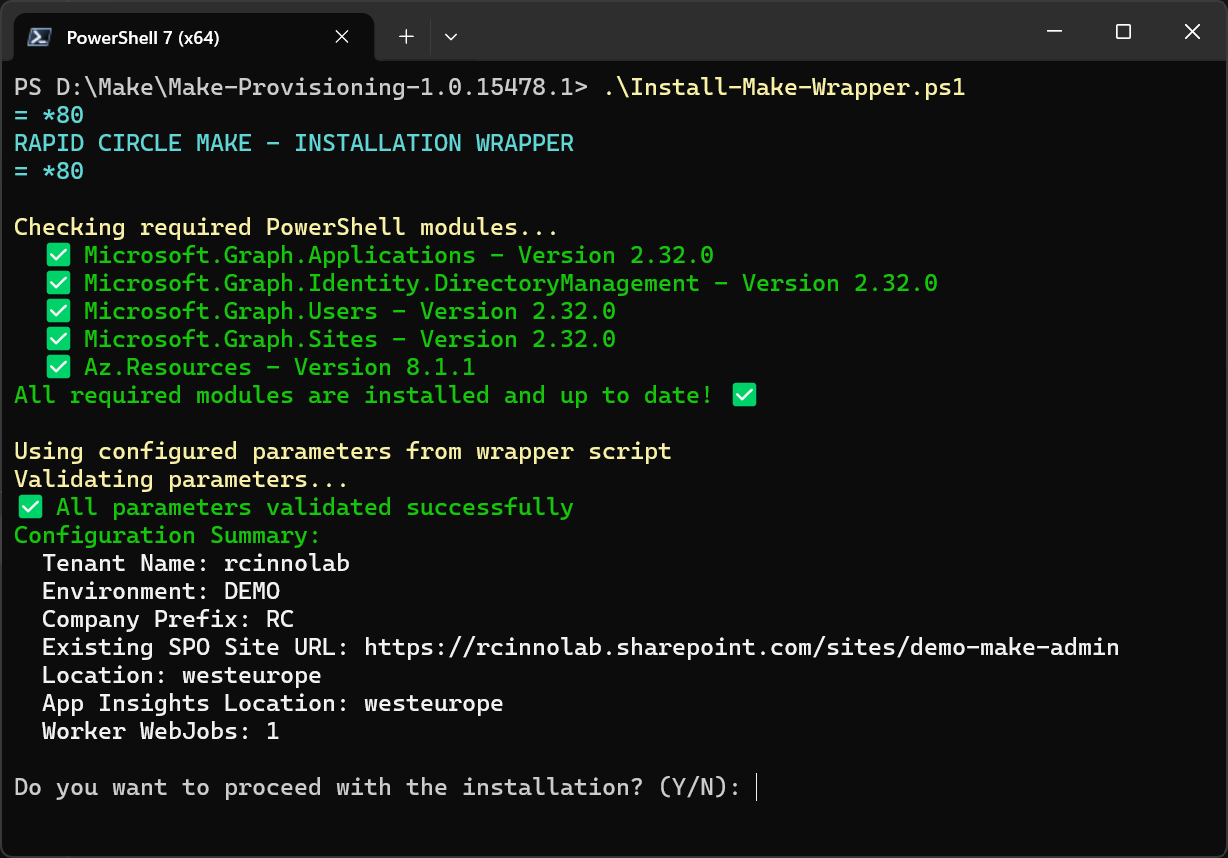
-
Enter your credentials (ensure you are an Azure Administrator).
Figure 3: Enter Credentials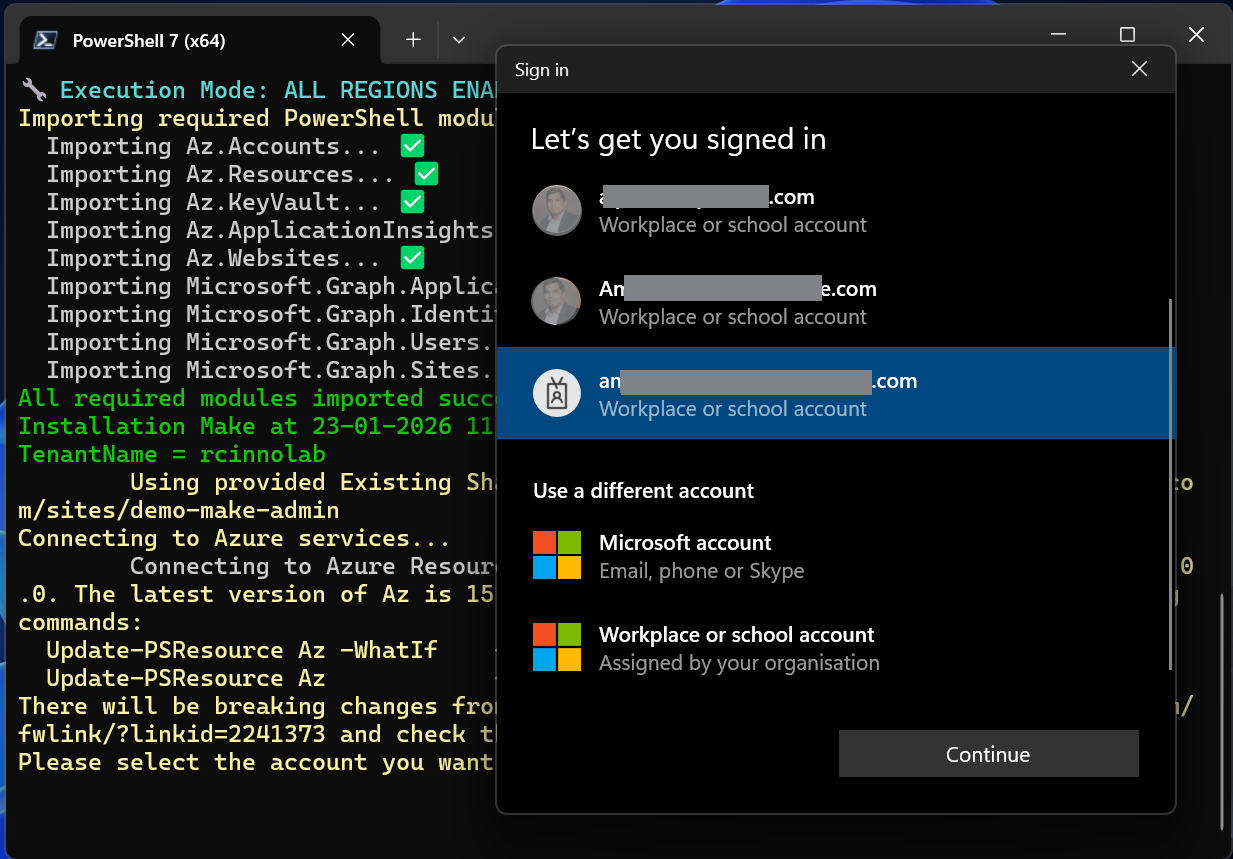
-
If you are prompted to select a subscription, please enter the appropriate subscription number, for example,
1.
Figure 4: Select a subscription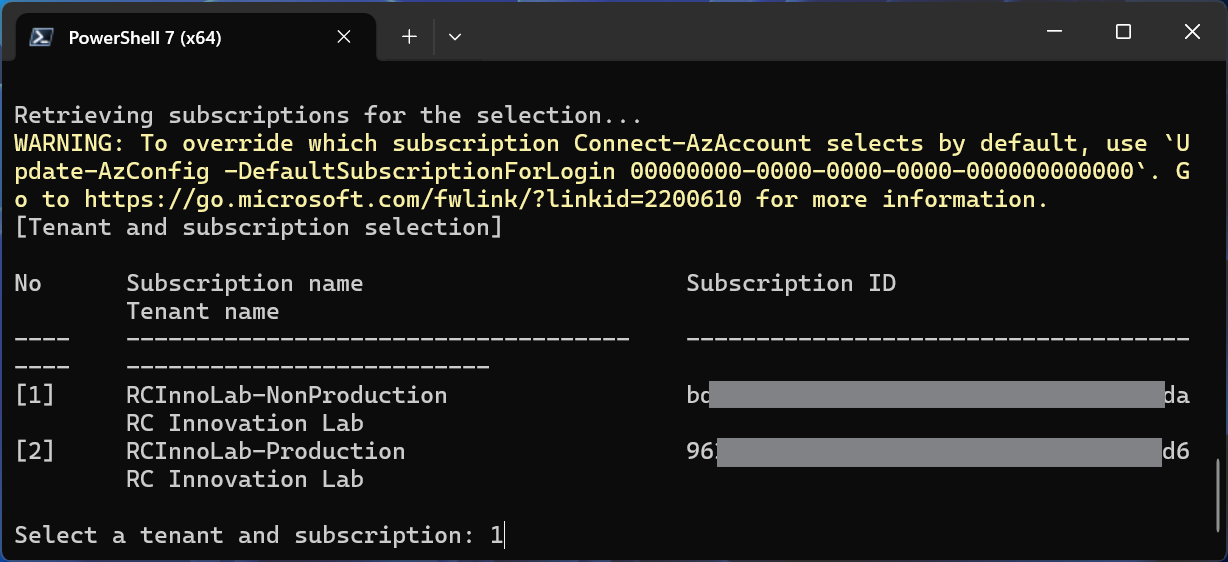
-
You will be prompted to create the SharePoint site collection manually. Once you have completed the SharePoint site creation as described in the instructions, type
Y.
Figure 5: Create the SharePoint site collection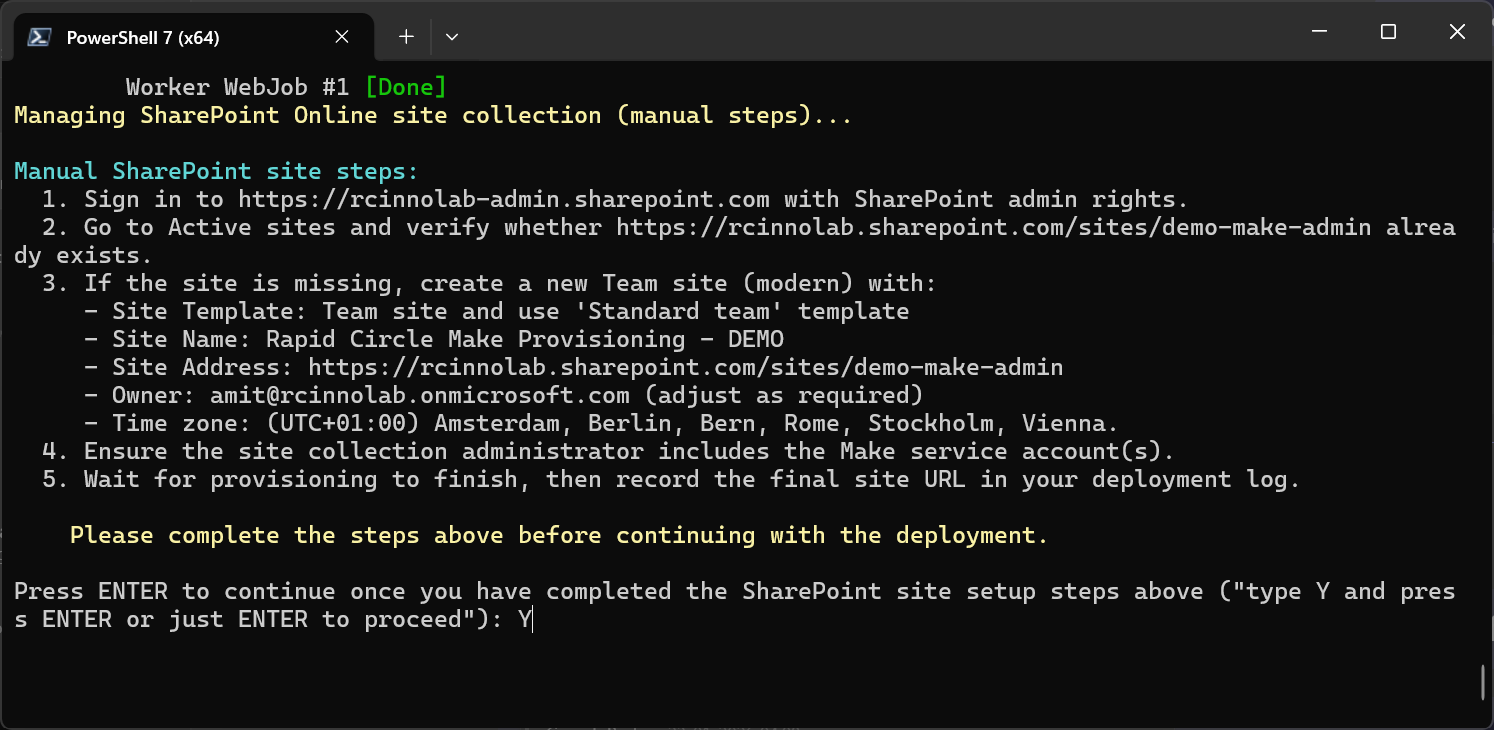
-
You will see confirmation of a successful Make Provisioning deployment, including created Azure resources, SharePoint site, and next configuration steps.
Figure 6: Confirmation and next configuration steps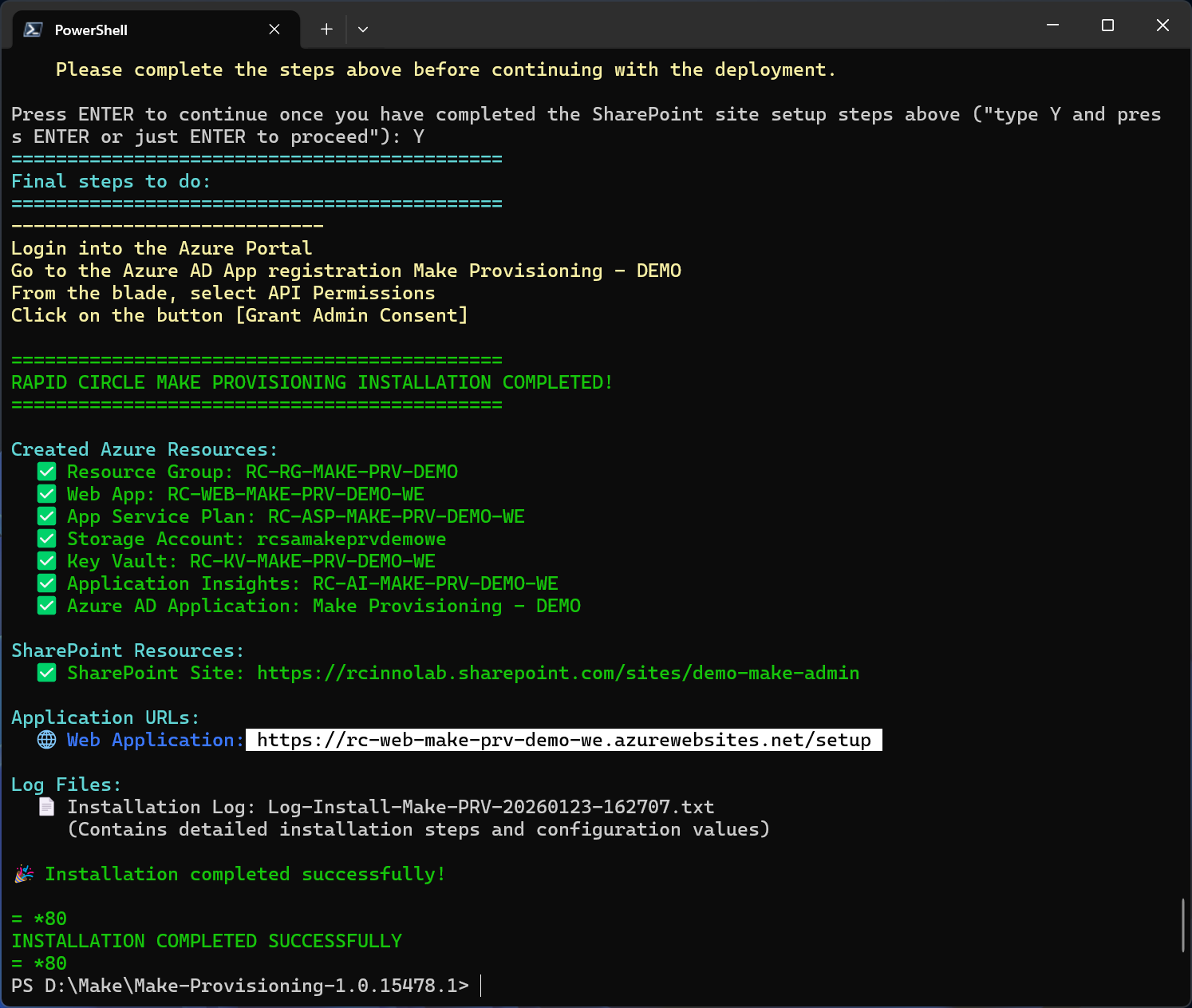
-
To complete the setup, sign in to the Azure Portal and grant admin consent for the required API permissions in the
Make ProvisioningMicrosoft Entra ID app registration.
Steps to grant Permissions – App registration- Open https://portal.azure.com.
- Navigate to Microsoft Entra ID > App Registrations.
- Select the Make app and go to API permissions.
- Click Grant admin consent and confirm.
-
Grant access by assigning users or groups to the Make Provisioning app in Microsoft Entra ID.
- Sign in to the Azure Portal at https://portal.azure.com.
- Navigate to Microsoft Entra ID → Enterprise applications → All applications.
- Select the
Make Provisioningapplication. - Go to Users and groups.
- Assign the required users or groups to grant access to the application.
-
Open the Make Provisioning setup page by navigating to
http://<Make-Provisioning-Web-Portal>/setupand complete the remaining configuration steps.